> ## Documentation Index
> Fetch the complete documentation index at: https://docs.ailunapro.com/llms.txt
> Use this file to discover all available pages before exploring further.
# WhatsApp Integration
> Answer WhatsApp voice calls with Voice AiLunaPro agents using the WhatsApp Business Calling API
## Overview
Voice AiLunaPro answers voice calls that WhatsApp users place to your WhatsApp Business number. Only inbound calls are supported.
## Prerequisites
* A Meta business portfolio with a WhatsApp Business phone number on Cloud API
Follow the steps in order. Meta verifies the webhook against a saved AiLunaPro
configuration, and won't turn on calling until a `calls` webhook exists.
## Step 1: Create a Meta App
1. Go to [developers.facebook.com/apps](https://developers.facebook.com/apps) and click **Create App**
2. Enter an app name and contact email, then click **Next**
3. Select **Connect with customers through WhatsApp** and click **Next**
4. Select the business portfolio that owns your WhatsApp number, click **Next**, then click **Create app**
## Step 2: Collect Credentials
**WhatsApp Business account ID**
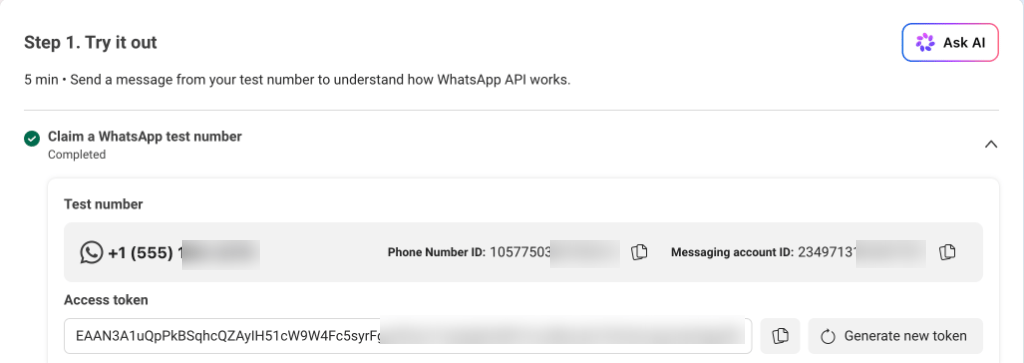
1. In your app, open **Use cases** → **Connect on WhatsApp** → **API Setup**
2. Select any of your numbers in the **From** dropdown
3. Copy the **WhatsApp Business account ID** shown below it. One AiLunaPro configuration covers every number on the account.
**Access token**
1. Open [Business settings](https://business.facebook.com/settings) → **Users** → **System users** and select a system user with **Admin** access (click **Add** to create one)
2. Click **⋯** → **Assign assets**, and give the system user full control of your app and your WhatsApp account
3. Click **Generate token**, select your app, set expiration to **Never**, and grant `whatsapp_business_messaging` and `whatsapp_business_management`
4. Copy the token — Meta shows it only once
**App secret**
1. In your app, open **App settings** → **Basic**
2. Click **Show** next to **App secret** and copy it
 ## Step 3: Configure in AiLunaPro
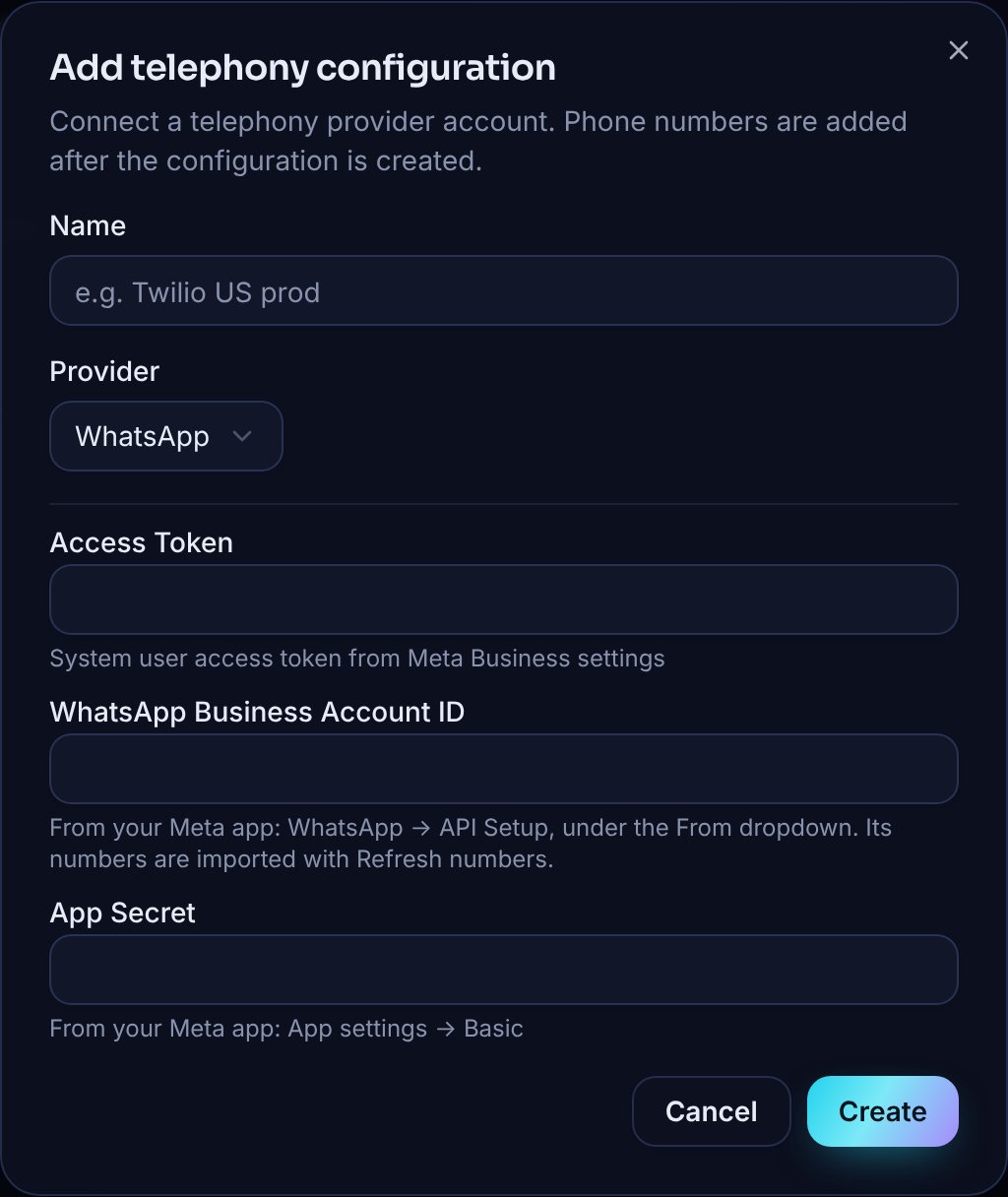
1. Navigate to **/telephony-configurations**, click **Add configuration**, and select **WhatsApp**
2. Enter the **Access Token**, **WhatsApp Business Account ID**, and **App Secret**, then click **Create**. AiLunaPro checks them with Meta and subscribes your app to the account's webhooks before saving.
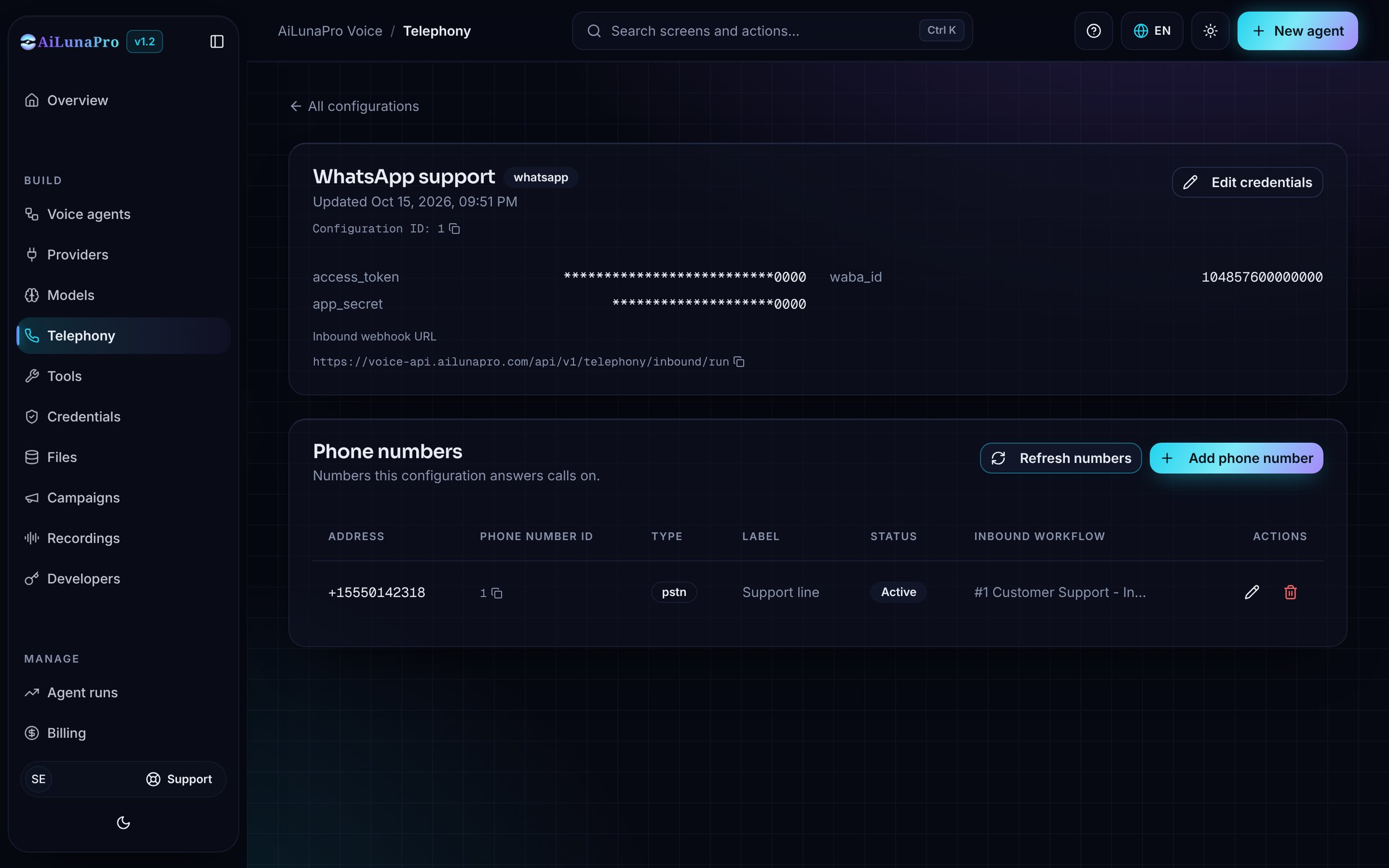
3. Open the new configuration. Under **Webhook for your Meta app**, copy the **Callback URL** and the **Verify token** — you'll paste both into Meta in Step 4
4. In **Phone numbers**, click **Refresh numbers**. AiLunaPro imports the numbers Meta lists on the account. The result names any number it had to skip, so check it before assigning workflows.
5. Edit each number that should take calls and set its **Inbound workflow** to the agent that should answer. A number with no workflow rejects calls.
## Step 3: Configure in AiLunaPro
1. Navigate to **/telephony-configurations**, click **Add configuration**, and select **WhatsApp**
2. Enter the **Access Token**, **WhatsApp Business Account ID**, and **App Secret**, then click **Create**. AiLunaPro checks them with Meta and subscribes your app to the account's webhooks before saving.
3. Open the new configuration. Under **Webhook for your Meta app**, copy the **Callback URL** and the **Verify token** — you'll paste both into Meta in Step 4
4. In **Phone numbers**, click **Refresh numbers**. AiLunaPro imports the numbers Meta lists on the account. The result names any number it had to skip, so check it before assigning workflows.
5. Edit each number that should take calls and set its **Inbound workflow** to the agent that should answer. A number with no workflow rejects calls.
 Added a number to the account in Meta later? Open the configuration and click
**Refresh numbers** again. Numbers Meta no longer lists stay in AiLunaPro and are
reported in the result so you can remove them yourself.
## Step 4: Configure the Webhook in Meta
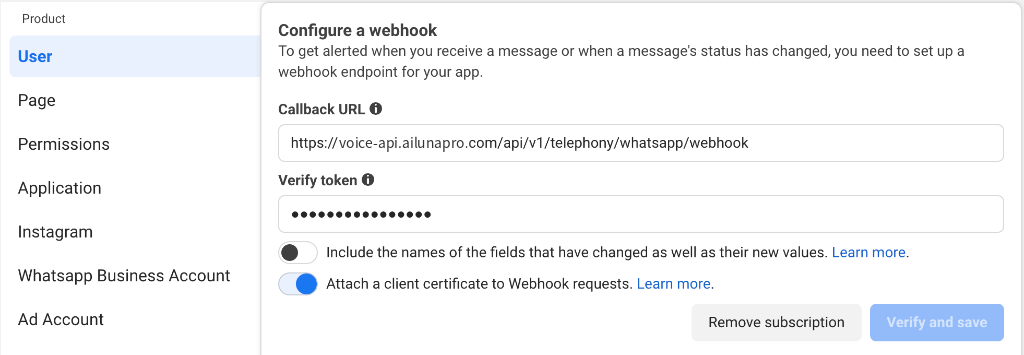
1. In your app, open **Use cases** → **Connect on WhatsApp** → **Configuration**
2. Paste the **Callback URL** and **Verify token** from Step 3, then click **Verify and save**
3. In the **Webhook fields** list that appears, turn on **Subscribe** for `calls`
Added a number to the account in Meta later? Open the configuration and click
**Refresh numbers** again. Numbers Meta no longer lists stay in AiLunaPro and are
reported in the result so you can remove them yourself.
## Step 4: Configure the Webhook in Meta
1. In your app, open **Use cases** → **Connect on WhatsApp** → **Configuration**
2. Paste the **Callback URL** and **Verify token** from Step 3, then click **Verify and save**
3. In the **Webhook fields** list that appears, turn on **Subscribe** for `calls`
 ## Step 5: Turn On Calling
1. Open [WhatsApp Manager](https://business.facebook.com/latest/whatsapp_manager/) → **Account tools** → **Phone numbers**
2. Click the gear icon next to each number and open **Call settings**
3. Turn on **Allow voice calls**
Alternatively, turn on calling via the Graph API (useful when testing with a Meta test phone number):
```bash theme={null}
curl -X POST "https://graph.facebook.com/v26.0//settings" \
-H "Authorization: Bearer " \
-H "Content-Type: application/json" \
-d '{
"calling": {
"status": "ENABLED",
"call_icon_visibility": "DEFAULT"
}
}'
```
A successful call returns `{"success": true}`.
## Step 6: Test
Call one of your business numbers from the WhatsApp app on a phone. Your AiLunaPro agent answers.
## Troubleshooting
Calling is off for the number. Complete Step 5.
The app has no `calls` webhook yet. Complete Step 4, then turn on calling.
Meta could not list the account's numbers with the access token. Check the
WhatsApp Business Account ID against the API Setup page, and that the
token's system user has full control of your WhatsApp account.
The token's system user needs `whatsapp_business_management` and full
control of the WhatsApp account. Regenerate the token with that permission
and save again.
Save the AiLunaPro configuration first, and make sure the Verify token in
Meta matches the one on the configuration page exactly.
AiLunaPro lists the numbers Meta shows under the WhatsApp Business Account ID
you saved. Check that the number is on that account in WhatsApp Manager,
and that the access token's system user has full control of it.
This documentation is built and hosted on [Mintlify](https://mintlify.com), a developer documentation platform.
## Step 5: Turn On Calling
1. Open [WhatsApp Manager](https://business.facebook.com/latest/whatsapp_manager/) → **Account tools** → **Phone numbers**
2. Click the gear icon next to each number and open **Call settings**
3. Turn on **Allow voice calls**
Alternatively, turn on calling via the Graph API (useful when testing with a Meta test phone number):
```bash theme={null}
curl -X POST "https://graph.facebook.com/v26.0//settings" \
-H "Authorization: Bearer " \
-H "Content-Type: application/json" \
-d '{
"calling": {
"status": "ENABLED",
"call_icon_visibility": "DEFAULT"
}
}'
```
A successful call returns `{"success": true}`.
## Step 6: Test
Call one of your business numbers from the WhatsApp app on a phone. Your AiLunaPro agent answers.
## Troubleshooting
Calling is off for the number. Complete Step 5.
The app has no `calls` webhook yet. Complete Step 4, then turn on calling.
Meta could not list the account's numbers with the access token. Check the
WhatsApp Business Account ID against the API Setup page, and that the
token's system user has full control of your WhatsApp account.
The token's system user needs `whatsapp_business_management` and full
control of the WhatsApp account. Regenerate the token with that permission
and save again.
Save the AiLunaPro configuration first, and make sure the Verify token in
Meta matches the one on the configuration page exactly.
AiLunaPro lists the numbers Meta shows under the WhatsApp Business Account ID
you saved. Check that the number is on that account in WhatsApp Manager,
and that the access token's system user has full control of it.
This documentation is built and hosted on [Mintlify](https://mintlify.com), a developer documentation platform.